
TV, tablet or projector for a home golf simulator?
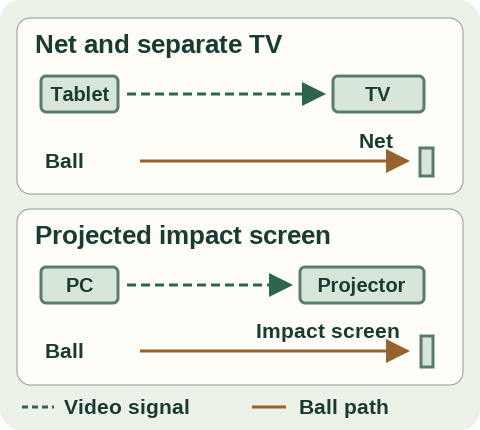
From the tee, check where you can see shot data without putting a tablet, TV or projector in the path of the club or ball. A TV can sit beside a practice net. A projector puts the picture on an impact screen. The device running the software has to send video to whichever display you choose.
Compare the two layouts Check the host and PC specs Run the picture test
Where will you look after the shot?
| Check | Net and separate display | Projection onto an impact screen |
|---|---|---|
| What stops the ball? | The net and its surrounding containment catch on-line and errant shots. Give the net the clearance specified for the product. | The impact screen and enclosure handle the intended shots within the specified clearance and containment. |
| Where does the picture go? | The host sends video to a separate TV or monitor. Place it beyond the swing, rebound and errant-ball paths, with a readable view from the tee. | The host sends video to a projector. Test the image from the tee and check shadows, room light and mounting clearance. |
| What can you reuse? | A readable display with the right input, and a tablet or computer that meets the app and monitor requirements. | A compatible host or projector if it can produce the intended image in the usable screen opening from an available lens position. |
For a projected setup, measure the visible screen opening then use the projector placement guide to check lens distance and the light path. Check moving fabric and containment separately in the impact screen guide.
Try a spare TV with a net and iPad
Suppose you already have a Garmin Approach R10, an iPad Air (5th generation), a suitable net position and a spare HDMI TV. For a practice-first setup, test the iPad’s simulator app before mounting a display. Awesome Golf documents the R10’s Bluetooth link on iPadOS. Apple documents sending video from the USB-C iPad to an HDMI display using a compatible adapter. The TV receives video from the iPad. Keep its location and cable route outside the ball, swing and walking paths. Awesome Golf R10 setup · Apple iPad display connections
From the tee, can you read the carry line and see where the shot finished? Can you return to the tee without crossing a cable? If the iPad’s screen works on its own, leave the TV purchase or permanent mount out of the first quote. If you can read the app more clearly on the TV, record the iPad, adapter and input that worked before you set up a permanent cable.
If you later choose GSPro, you can keep that TV if it accepts the Windows PC’s output. For a great 4K experience GSPro recommends an RTX 3080 or better, 32 GB of memory and 20 GB of free space. Check the connector and the other software’s requirements as well. Use the resolution that works across the PC, cable and display, and run a trial at 1080p if you’re deciding whether to pay for 4K. GSPro supported devices and Windows requirements
Connect an Approach R50 directly to a TV
For built-in practice or a built-in virtual round, connect the Garmin Approach R50’s HDMI output directly to an HDMI input on a TV, monitor or projector. The R50 runs the session and Garmin lists its external output as 1080p. If the R50’s built-in modes cover the sessions you want, try its HDMI output before pricing a PC. A third-party app has its own host and connection requirements. Garmin R50 extended display instructions
Select the matching display input and start a practice session or virtual round on the R50. Garmin says the external display extends only after a session starts. Confirm the range or course appears, then choose Map, Data Fields or Mirror R50 Display in the session’s External Display menu. Check that the view you choose is readable from the tee before running permanent cables. Garmin’s first-session display controls
Choose a home TV setup by the app you’ll use
If you want practice and virtual rounds without a separate host, start with the R50’s built-in HDMI route. If you already have a compatible USB-C iPad, try the R10 and Awesome Golf example or a Square Golf Home with Square’s own app over Bluetooth. Test the external picture on the exact iPad and adapter while the app is running. For Windows course play, choose the monitor, app and graphics settings together before you price a PC. Square Golf’s first-party app and supported hosts
GSPro on a Windows PC
GSPro’s official list includes the Garmin R10 and R50, Rapsodo MLM2PRO, Square Home and Omni, FlightScope Mevo+ and Mevo Gen2, Uneekor EYE MINI LITE and Foresight GC3. Check the exact model on the current list before buying an app or monitor. GSPro requires Windows 10 or 11 and recommends an RTX 3070 or RTX 3060 Ti, 16 GB RAM and 20 GB free for a great 1080p experience. GSPro’s official models and PC recommendations
Check the connection and any monitor-side software licence as part of the same quote. Garmin’s R10 uses the PC’s Bluetooth, Square uses the Square Golf connector in GSPro, and Uneekor’s EYE MINI LITE connects to the PC by Ethernet. Garmin setup · Square Golf setup · Uneekor setup
For the GC3 on a Foresight+ account, Foresight specifies Gold and a separate GSPro subscription. If you hold an existing FSX licence, verify your entitlement for the specific connector before paying again. Foresight+ integration terms
Foresight GC3 with Foresight Premier
Foresight lists the GC3 for Premier through Foresight+. The minimum desktop spec for 1080p Low is Windows 10 or 11, an Intel Core i5-12500, an RTX 4060 with 8 GB VRAM or better, 16 GB RAM and 50 GB free on an SSD. Foresight lists separate hardware for higher graphics settings. Check your Foresight+ tier for the modes and courses you want. Supported Foresight hardware · Premier PC specifications
Trackman iO with Trackman Performance Studio
Trackman’s iO and iO DUO specification calls for Windows 11 (64-bit), 32 GB RAM, a 1 TB SSD and two gigabit Ethernet ports. Its standard column lists Intel i7 or Core Ultra 7 with a minimum 3.4 GHz boost, an RTX 4070 Ti, 4070 Ti Super or 5070 Ti, and an 800 W minimum power supply. Trackman gives a separate column for 4K and different network ports for Trackman 4. Trackman PC and network specifications
If you intend to run two Windows apps, use the higher target where their requirements overlap and confirm each app’s processor, graphics and connection rules. Put the model, app, settings, ports and licences on the quote. Then test the combination at the TV.
Compare desktop and laptop requirements for your software and output resolution before deciding where the computer will sit.
Choose Ethernet or Wi-Fi for the shot connection
- Uneekor EYE MINI LITE. Run Ethernet directly from the unit to the PC. The portable EYE MINI has a different setup. Uneekor documents direct Ethernet, wired network and a shared Wi-Fi network for the EYE MINI. Its Wi-Fi setup starts with an Ethernet connection. Uneekor’s model-specific network guide.
- SKYTRAK+. Direct mode joins the monitor’s own Wi-Fi and can show a no-internet notice. To sync over your network, start in Direct mode, set up Network mode in the SKYTRAK app and put the host on the same home network. SKYTRAK connection modes.
- Garmin R50 with GSPro. GSPro documents a direct R50 hotspot and a shared home Wi-Fi route. The hotspot can pass the R50’s internet connection through to the PC when the R50 has internet. Keep GSPro’s internet requirement separate from the local connection. GSPro R50 connection choices.
Once swing and ball containment are checked, test a shot in the monitor’s own app and then in your course app before fixing the cables. If the native app tracks the shot but sign-in or online play fails, check the host’s internet separately. Test both paths with the garage door in its normal playing position.
Does a simulator hitting mat connect to the TV?
Ordinary hitting turf is the surface you stand and hit on. The launch monitor supplies the shot data and the host supplies the TV picture. A sensor pad can be the tracking device. For example, the OptiShot2 swing pad sends data over USB to a computer running OptiShot2, and the computer sends video to the TV. With an existing pad, test the software and your computer’s video output first. Red Stakes Golf lists OptiShot2 as end of life and documents a reduced Windows version with online play removed. OptiShot USB and video connections · OptiShot2 software status
To play without hitting a ball, compare TV swing sticks and motion sensors and check how each connects to the display.
Test the picture from the tee before fixing the cables
- Open the app on the host. Connect the exact launch monitor and confirm a shot appears in the app while the external display is connected. Identify separate adapters needed for the monitor and video output.
- Test the video link. Select the matching TV or projector input. On Windows, try Duplicate for the same image on both screens, or Extend if you want a separate desktop. Confirm the app appears on the intended display. Select that display in Settings before checking its resolution. Microsoft’s multiple-display instructions · Windows resolution settings
- Rehearse a session. From the normal hitting and viewing positions, check the full app fits, small figures can be read, and you can reach any controls without crossing the hitting area. Test with the room lighting, cables and display positions you actually intend to use.
A desktop or menu shows that video reaches the display. Use the practice or course mode you’ll play to see how it runs at the intended resolution. If a 4K image runs poorly, compare a supported lower output resolution before pricing a new computer. Compare the full equipment path on the itemised cost sheet and mark the display, tee and cable path on the garage fit planner.
Support pages checked 21 November 2026. For a setup like the garage example, verify the exact iPad or computer video output, adapter, app and display you plan to use.