
Care for a golf simulator screen, mat and projector
Before cleaning a mark, inspect the screen fabric and its fixings. Follow the maker’s cleaning instructions if the fabric is sound. Stop play if the fabric is torn or a seam, fixing or mat joint has failed.
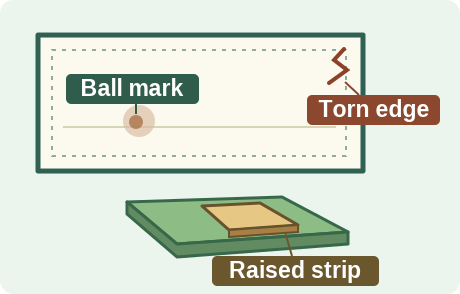
What needs cleaning, repair or replacement?
Ball marks on a sound screen
Switch off the bay and check the panel in good light. Use clean, unmarked balls and clean clubfaces to limit new marks. Carl’s Place V06 allows a carpet shampooer or the specific cleaner named in its sheet. The Indoor Golf Shop lists a carpet shampooer for SIGPRO. Both give forced drying guidance for their own screens to avoid water marks. Consult the exact maker before using any cleaning product or process. Fix the cause of damp or condensation before restarting. Carl’s Place V06 · SIGPRO screen care
Torn fabric or a failed edge
Pause hitting if fabric is split, an eyelet or seam is pulling out, or hard fittings are now exposed. Photograph the damage and the attachment pattern and check with the screen maker. If ball return has changed, recheck the screen setback, the golfer’s standing mark and tension against the product instructions. Use the dimensions, edge fasteners and enclosure model to order the replacement. SimSpace, for example, lists Platinum replacements by matching enclosure size for SIM 1 to SIM 6. Confirm the exact variant and local availability. SimSpace replacement options and attachment details
A worn strike patch or raised strip
Start at the seam, then check for a loose base, a raised edge or deep wear where you strike. Fiberbuilt says its Grass panels can rotate 180 degrees as wear emerges and also documents rotation for its Player Preferred panels. Follow the maker’s cleaning process for the parts you own. Fiberbuilt’s annual pressure-wash guidance applies to those hitting surfaces. For a worn Carl’s HotShot insert, match the 30 × 12 × 1¾ in pocket, and check stability and a level joint after fitting. Fiberbuilt product care · Carl’s HotShot system and inserts
A pulled eyelet and a worn hitting panel
Suppose a player finds a dark ball mark and a pulled eyelet on a Carl’s screen. They stop play and send the eyelet photo to the maker. If the maker specifies a replacement, they check the actual screen dimensions and fasteners before ordering. Cleaning the original mark can wait until the attachment decision is made.
On a separate Fiberbuilt Grass bay, the stand is stable but wear has developed at just one end of a sound hitting panel. The maker’s 180-degree rotation can bring the less worn end into play. Check that the panel is level and seated after rotating, put the tee and monitor back on their normal marks and recheck the first shot. If there is a loose or damaged joint, leave the bay out of play pending a proper fix.
Before each session, look for changes where the ball hits and where people stand or walk. After maintenance, recheck the containment, mat joint, tee, alignment and any moved cables. Record the action and the exact part. Repeat checks after a move or a period in storage. Recheck the first shot after setup.
Is it a mark or damage to the screen?
In good light, check the ball for dirt, ink, scuffs or a raised cut. With the bay stopped, inspect the front and back of the marked screen patch plus the nearby stitched edge. A colour mark on intact fabric can be cleaned using the exact maker’s process. An opening, fine split, thinning patch, failed attachment or a sudden change in rebound calls for a fabric and installation check before more shots. Keep the affected ball aside and use a clean, unmarked, undamaged ball for the first session after the bay passes its checks. Carl’s V06 use and care · SIGPRO screen-care guidance.
Fit a bay check around a short practice session
Before a ten-shot set, check that the screen and edges are sound, the mat joint is level and tight, and the monitor sits on its marked position. Use a clean ball. Confirm the first normal shot registers and stays in the protected bay. Then run the drill with the same mode, ball and target for the whole set. After the set, record any fresh marks or strip movement, recover the balls and take damp fabric out for maker-approved drying where needed. Choose a ten-shot drill · Recheck a first shot after maintenance.
Estimate electricity cost and check the circuit
Estimate energy for each device. Divide its average watts by 1,000 and multiply by hours to get kWh. Multiply the result by the unit rate on the household bill for that time of day. For example, the BenQ AH700ST manual lists 320 W maximum. If it ran at that draw for 100 hours, the projector would use 32 kWh. At illustrative tariffs of 28p per kWh in the UK or $0.20 per kWh in the US, that would cost £8.96 or $6.40 respectively. Use a measured average for a realistic usage estimate and check any different peak and off-peak rates on your own bill. BenQ AH700ST manual, electrical specifications · US EIA on watts and kWh · UK Energy Saving Trust tariff guidance
Check the loads that run together. The example covers the projector alone. List the actual projector or TV, PC, monitor, lighting, audio, powered screen and heating, cooling or dehumidifying equipment. For each, note the supply rating from its nameplate or manual, where it will be fitted and what else runs at the same time. Leave any unknown equipment rating blank until verified. Give the list and room plan to a registered electrician in the UK or a qualified local electrician in the US to confirm outlets, available circuits, protection and any work needed. Use kWh to estimate the bill. Have the electrician check whether the circuit and outlets can supply the devices that run together. Electrical Safety First guidance · Prepare an installation and handover brief.
Track repairs and running costs
- Screen or strip. Record the maker, model, size and last time you checked the support or rotated a compatible strip. Price the exact fit with UK VAT and postcode delivery or US tax and ZIP delivery.
- Projector. Check the instructions for the exact model. BenQ tells AH700ST owners to switch off and let the unit cool completely before lens cleaning. Refer new fault lights, damaged cords or loose mounts to support or the installer. BenQ AH700ST maintenance section.
- Running budget. Use your actual tariffs and use hours. Keep room conditioning and software renewals separate so you can change an assumption without recosting the rest of the bay.
Put the replacement screen in the year you buy it
On 21 November 2026 GolfBays displayed £329 for its linked SimBox Lite replacement screen and £399 on the PRO+ replacement listing. Each is a screen-only item. Check the required frame size and attachments before choosing, plus VAT and delivery for the exact order. Using the illustrative £8.96 projector energy from the example above, the year with a £329 screen purchase totals £337.96 for those two lines. Without a purchase in that year, only the example projector energy goes in those lines. Add the actual screen delivery, other devices, heating, software and mat parts separately. GolfBays Lite replacement listing · GolfBays PRO+ replacement listing.
Put the screen quote and installation date in the inspection log. If you set money aside for wear, update that amount when you see how long parts last and what replacements cost.