
How to practise on a home golf simulator
When two irons seem to go the same distance, hit six shots with each. Compare where the shots first land and how often one club clears a distance the other struggles to reach.
Compare two clubs Read the worked example Play with friends Export practice shots
Measure carry in the same conditions
Choose a mode that shows carry for each shot. Carry is where the ball first lands. Total distance adds bounce and roll, so use carry when you want to know whether a shot will clear a bunker. For example, Trackman’s Map My Bag in TPS 10.1 reports carry, total distance, dispersion and club gaps for a signed-in player with a bag in the Trackman Golf app. You can also keep a paper record from a range mode that shows per-shot carry. Trackman’s Map My Bag instructions
- Choose two clubs and a target. Pick two neighbouring clubs with similar carry distances. If the bay only has room for a shorter swing, use that swing on both clubs and write down the shot you tested.
- Keep the setup consistent. Use the same ball type, mat, target line, software mode and units. Check the settings for wind, altitude and any normalisation before comparing sessions. Trackman’s Normalization feature, for example, models carry, side and total for calm conditions and a chosen altitude and temperature. Trackman on normalisation
- Warm up, then record six shots per club. Log the carry of each shot and, if available, how far it finished left or right at landing. Keep readable mishits in the sample so it reflects your ordinary misses. Record missing device readings separately and replace them with another attempt. Use six shots as a starting workload for this exercise.
- Summarise both sets. Order the six carries and average the two middle values for the median. Also note the shortest, longest and typical miss. Repeat on a second day before changing your club choice based on a small difference.
Worked example with two irons
This example uses yards. Use metres throughout if that’s how you measure your shots.
9-iron
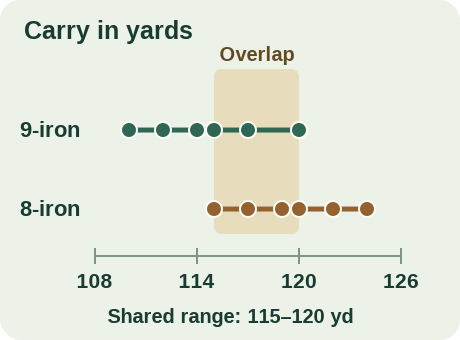
All six carries. 110, 112, 114, 115, 117 and 120 yd.
Median. (114 + 115) ÷ 2 = 114.5 yd.
Range. 110–120 yd.
8-iron
All six carries. 115, 117, 119, 120, 122 and 124 yd.
Median. (119 + 120) ÷ 2 = 119.5 yd.
Range. 115–124 yd.
The medians differ by 5 yd, and the recorded ranges overlap from 115 to 120 yd. Say you’re comparing clubs for a 118 yd carry. In this sample, one of six 9-irons and four of six 8-irons reached that distance. The 8-iron is the stronger candidate for another test. Repeat with the same bay settings, check left/right misses, and compare with outdoor carry before relying on either club to clear a hazard.
Practise a putt or let the game finish it?
Do you want to practise the roll or get to the next tee sooner? The Garmin Approach R50’s built-in simulator has a Putting switch and a Gimme Distance setting. A gimme automatically records the next shot as made when the virtual ball is close enough. To check a physical putt during a virtual round, enable Putting and test from a virtual distance outside the selected gimme range. Confirm the monitor reads the roll before keeping score. Use the same green speed and gimme settings when comparing rounds. Garmin R50 putting and gimme settings
For a simple physical drill, mark one start and a target on a clear putting surface. Roll six balls from the same spot. Tally the balls that finish on the target line and inside a stop zone you choose. If the monitor or game skips short putts, use your tally as the session result. That lets you repeat the drill without changing simulator hardware.
Run a repeatable ten-shot skills test
Pick five target distances you can comfortably reach with the shots your home bay accommodates. Hit two balls to each distance. If your range reports carry and sideways deviation, award one point when a shot lands within 5 yd (about 4.6 m) of the intended carry and within 5 yd left or right of the target line. For a target of 60 yd, a shot carrying 64 yd and finishing 3 yd left scores a point. A shot carrying 59 yd and finishing 7 yd left misses the window. Reuse your five targets, scoring window and app settings each time.
For a built-in combine-style option, Awesome Golf’s Skills Challenge uses ten shots, moves the target after each pair and scores landing by rings. Difficulty changes the task, so record it with the score. Use the manual drill when you want to choose the exact target distances. Keep the app’s score alongside previous attempts in the same mode. Awesome Golf Skills Challenge rules
Share one bay for family practice
For a head-to-head Skills Challenge in Awesome Golf, add the players before starting. The game gives each player two consecutive attempts before switching, with ten shots per player. Guests can join by name. Keep a simple score on paper if they want a record because guest scores and personal bests stay unsaved. If the group prefers a short chipping game, Super Splash gives each player six attempts to land in the scoring pools. Use a mode you have tried with the club and launch monitor the group will use. Skills Challenge multiplayer order · Guest play and saved scores · Super Splash rules
One person hits at a time. Mark a waiting place beyond the swing, errant-ball and rebound paths. Before a golfer switches to the other side, check where they’ll stand, where others walk and which handedness the app has selected. If either player lacks room for a full swing, choose a drill everyone can play inside the checked area.
A worked session for three players
- Set the names before the first ball. The host signs into Awesome Golf Simulator and selects Add Player. A returning friend signs into their own account to keep supported practice results. A first-time friend enters a guest name for this game. Open Edit Player to check each person’s handedness and tee preference. The host needs a working app licence on the connected monitor, while player accounts identify whose results are saved. Add players and preferences · Licence scope
- Play two balls each, then change targets. Set one difficulty for everyone before starting. At target one, the host hits two, the returning friend hits two and the guest hits two. Repeat at the next four targets. Three players × ten shots makes 30 scored shots. At an illustrative average of 30 seconds per shot, allow 15 minutes for hitting, plus warm-up, instruction and time to change stances.
- Keep a score each person can take away. Write the mode, difficulty and final score next to each name. In Awesome Golf, registered players can review eligible activity under their own name. A guest can join by name and edit preferences for play. Their shots, personal bests and leaderboard entries are unsaved. If both friends want per-shot data afterwards, have them sign in before starting a separate Shot by Shot session. Guest and registered results
Export shots from a saved practice session
Garmin Golf with Approach R10 or R50
Save the driving range session and open the Garmin Golf phone app. Choose Activity, open the saved range session and use the three-dot menu to choose Export to CSV. Use your phone’s share options to keep the file. Garmin lists range session saving with the free app. Home Tee Hero course membership is a separate choice. The support workflow exports saved Garmin range data, with Swing Capture video shared separately from the individual shot. Garmin’s CSV steps · Garmin’s membership feature list
Awesome Golf Simulator and Insights
Play Shot by Shot, Coaching or Club Distances under your own registered account. Sign into Awesome Golf Insights, open Stats → Sessions, pick the saved session and choose Export CSV in the browser. The session shows the club, mode, date and shot metrics, such as speed, distance and spin where tracked. The CSV download contains shot stats. A guest’s unsaved shots cannot be exported from Insights. Awesome Golf session export · What saves to your account
Export a short session first. Open the CSV and check the number of shots, the carry column and its units. Keep the player, monitor, ball and practice settings with the file so you can repeat the test. Use the log below if the export lacks carry or a guest wants a copy of their score.
Keep a carry log
Write down the date, shot type, club, ball, mode, units and weather or normalisation setting. Add the six carries, median and range, then record which club you’ll retest and why. For distance control, use that same format with one wedge and two familiar target distances. For example, set a 60 yd target and pick a 5 yd tolerance. Count the shots that carry from 55 to 65 yd before changing the target.
Start with a setup you can reproduce. If you move the mat or change the range mode, mark it in the log so you can evaluate the next set in context. Check tee and monitor positions in the monitor placement guide and save them in the garage fit planner.
Software sources checked 21 November 2026. Repeat the six-shot sets before you change which club you take on the course.
To see what changed between two swings, choose a swing replay camera and mark its position before recording.