
Choose and place a swing replay camera for your simulator
A phone on a tripod can show your setup and body movement. If you want a clip to appear after every shot, check which cameras the simulator app recognises and whether the computer can run them together. Either way, check that the whole swing fits in the frame under the lights you play with.
Compare replay setups Draw both camera positions Test the saved clips
Which apps can save a swing with each shot?
A swing camera records the player and club across the swing. The launch monitor’s tracking system supplies shot data, and an impact camera may only show contact. If you want both videos to appear after each shot, choose the software that joins the clips to the shot before choosing camera hardware.
| Your replay workflow | Camera and host | Check before paying |
|---|---|---|
| Manual clips and separate practice | Start with your existing phone and a stable mount. Save a face-on clip and a down-the-line clip at the same tee. | Useful even if your launch monitor has no replay feature. A phone that records slow motion may still need more light and accessible storage. |
| Uneekor VIEW and Swing Optix 2.0 | The 2.0 package supplies two cameras, lenses and tripods. Use Windows, an eligible Uneekor monitor and Launcher. Register the cameras, then assign angles. | Check the Optix generation and two usable USB ports. If you want Uneekor’s AI Trainer, check that your software plan includes it. If you run a second simulator app, verify that both apps can run with the cameras connected. A published maximum of 120 fps is a selectable capture limit. Uneekor Swing Optix 2.0 kit · Uneekor camera registration and VIEW setup |
| Foresight FSX Play or FSX 2020 | Foresight documents camera playback with driverless webcams in these Windows titles. Match each camera to its assigned input and test the shot trigger. | Foresight+ and Premier have separate plans and software. The FSX camera article does not certify the same hardware in Premier. Foresight swing video support · Foresight+ plans |
| FlightScope Mevo Gen2 and mobile replay | FS Golf can clip swings using the radar camera or a mobile device. FS Multicam handles multiple angles on supported phones or tablets. | This describes FlightScope’s own app. Test any other software separately before assuming it can launch and save the same clips. FlightScope Mevo Gen2 swing-video FAQ |
GEARS Golf. GEARS uses multiple optical cameras and reflective markers within a calibrated space to measure the body and club in 3D. Choose a specialist demonstration if you need that kind of measurement. For a home replay clip, check the app and one or two cameras instead. GEARS golf motion capture
For a coaching app that does not use the monitor’s replay workflow, start with the app’s camera support and import instructions. Review a file from the actual camera first. Ask what “swing analysis” means on the listing. It may refer to a standalone video, a clip synced to the shot or a 3D record of the golfer’s movement. Swing Catalyst filming and lighting
Camera positions and lighting
Put two marks on the floor before drilling
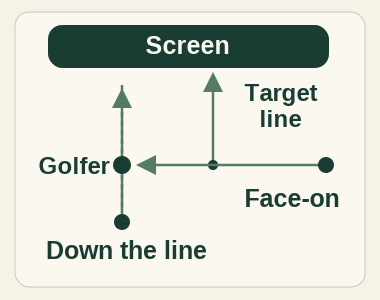
- Place the down-the-line view behind the player and parallel to the target line. Select a consistent line through the hands at address for your comparison clips. Set the camera near hand height and record where it sits so the view is comparable next time.
- Place the face-on camera across from the golfer’s chest, square to the target line. Keep it outside the swing and possible impact paths. A wide lens may help in a narrow room. Watch hands, feet and clubhead from address to finish to see whether it actually fits.
- Turn on the projector and the lighting you use during play. Light the player evenly while keeping bright spill off the screen. Review a clip for flicker, shadows and blur. Faster shutter settings can need more light. Keep the launch monitor’s own position and illumination rules intact. Swing Catalyst filming and lighting
Two examples of measuring the cable route
UK, one FSX replay view first. GolfBays displayed £399 for its global-shutter USB camera with a 5 m cable and a published 120 fps mode at 720p. For a drawn 4.5 m path to the PC plus 0.7 m of slack, you need 5.2 m. Test a closer PC position before ordering an extension. The seller names several brands. Check your exact FSX or other application and mode before trusting that broad claim. GolfBays 5 m USB camera · Foresight swing video support
US, two angles on Uneekor. The maker displayed $799 for Swing Optix 2.0 with two cameras, a wide and a zoom lens and 15 ft and 21 ft USB leads. If the routed face-on cable needs 18 ft and the down-the-line route needs 13 ft, assign the 21 ft and 15 ft leads respectively, after measuring with slack. Confirm both cameras run together at the mode you expect and check the total to your ZIP. Uneekor Swing Optix 2.0 kit · Uneekor combined hardware requirements
Test the recorded clips
- Start the intended simulator and replay software. Select both cameras, name the views and check the live previews. Review the PC’s available ports and disk space.
- Record a slower wedge swing and a driver swing under the same lights. Look for the clubhead at the point you want to review. Check for skipped frames or flashes, and see whether the correct clip appears promptly after the shot.
- Restart the computer and repeat the first shot. Verify the clip is saved, playable and exportable if you need coaching. Agree how to handle recordings of other people.
- Keep one working replay from each angle. Write down tripod marks, lens settings, cable lengths and room lighting before installing permanent brackets.
Start with a single phone angle if it shows the part of your swing you are working on. For automatic replay, ask the seller to confirm support for your exact app, two simultaneous cameras if you need them, and any licence term. Check how the camera host and projector connect in the display and computer guide.
Plan the practice session Check the replay PC Plan the projector